

I know! It's crazy!
Ok, Ok, while there's no "right" or "wrong" way to use Google, there sure is a more effective way than the way you're probably using right now; however, before I show you these neat little tricks I feel morally obliged to warn you of the potential dangers they bring.
Heed this warning: Show no one your new Googling skills, you will regret it. When you start telling people you can find what they've been searching hours for in seconds flat, and do, you'll not be able to stop the flood of requests to "please just quickly find this, cos you're a computer genius" that come barreling your way.
Don't say I didn't warn you….
Now on to the good stuff.
The most common mistake I see people making when searching with Google is the phrasing of their questions. You have to remember that you're speaking to a search engine, not a person, and that means understanding how the search engine is going to interpret what you say.
For the purpose of this article we won't go into the nitty gritty of what Google does when it executes a search, suffice it to say Google finds matches for your search terms on other websites instead of actually understanding your questions (although sometimes it does, but more on that later).
What this means is that when you search Google using a direct question you'll probably see links to Yahoo! Answers or similar sites where someone has asked the same question, and if you're lucky a few related links among the rest. When you start asking more technical questions that other people might not yet have asked you'll find a confusing and unrelated list of results that will more often than not prove to be a huge time waster.
Instead, phrase your questions the way you would expect the answer to be phrased. This means dropping the "what", "when", "how" etc. and providing as much relevant information as possible. (Also drop unnecessary words like "the", "and" "of" etc. as Google doesn't index them anyway.)
Now your search for a document listing South Africa's Gross Domestic Product (GDP) in 2006 and 2007 (what a weird thing to want to search for…) stops looking like this: What was South Africa's GDP in 2006 and 2007? - and starts to look like this: "South Africa" GDP 2006 2007

But wait, what are those quotation marks for? Glad you noticed. The quotation marks ensure that the separate words are seen as a phrase, e.g. "staff training" instead of Google indexing the words "staff" and "training" individually.
I stand a much better chance of finding what I'm looking for now with that optimised search term, but I feel we could still do better.
If you know what site the answer to your question is likely to appear on you can ask Google to search that website individually. In this case because we're looking for South African statistics a good place to start seems like StatsSA.
To search one site in particular simply type site:websiteaddress (site:statssa.gov.za) at the beginning of your search term.
And what was that about you needing it specifically to be a PDF file? Google can search specifically for those, too.
This is done by typing filetype: and then the file extension (e.g. filetype:pdf / filetype:doc) next to our search term. This will also work for other file types such as doc, jpg etc.
So our search term now becomes: site:statssa.gov.za filetype:pdf "South Africa" GDP 2006 2007

And I can now see that the first result in Google's list is the exact document I need. Success!
Ok cool, so what was that about Google understanding our questions some of the time?
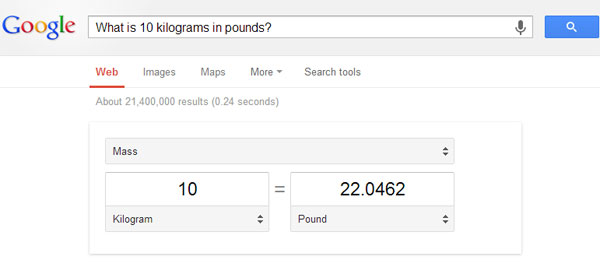
Well, it depends on what type of question you're asking. Sometimes Google provides answers in the form of a text box above all the other results. Examples of this are conversions (what is 10 kilograms in pounds?), exchange rates (although these may not always be accurate), definitions (type define: before the word you want the defining), and sums (use Google as a calculator by using * and / for multiply and divide).
There are also various other tips and tricks we can use to save time and be more efficient when using Google, below are some of the most useful.
Using this symbol "~" before one of your search terms will tell Google to also index related terms, e.g. ~assertiveness will also return results including the word "assertive" and ~confident will return results with "confidence".
Quickly check whether a page has the info you need by using your computer's search function, F3 (or Ctrl+F), to match what you type to what is on the page. If the box goes red, whatever you're typing isn't on the page you're looking at. Time to go back to Google's search results.
The last tip, quickly flicking through tabs, isn't really a Google shortcut but it sure comes in handy when you're referencing work…. To do this hold down the Alt key and tap the Tab key until the program you want to switch to is highlighted, then simply let go. The programs are usually organised in such a way that the last used program is always next in line, allowing you to quickly swap between windows and continue working.
And that's it for now! There are certainly many other shortcuts and tricks that can be used online; these are just a few that if used right can speed up your browsing tenfold. Happy surfing!
Staff Training presents Social Media Marketing Training, contact info@StaffTraining.co.za or call (021) 839 3021 for more information.